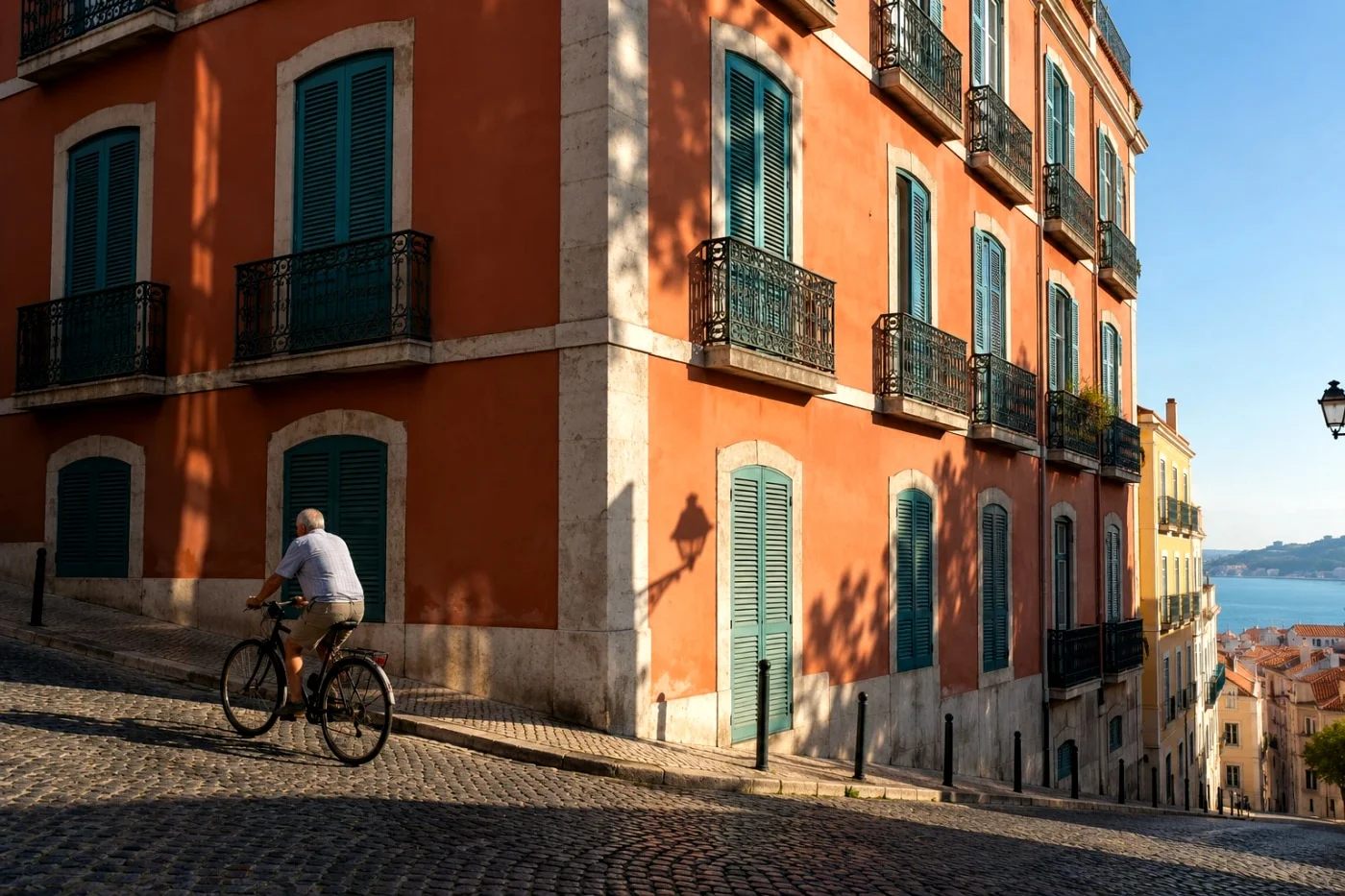
Choose a representative photo, find a look that works, then check it on a few other images before saving the set. That is the shortest useful batch workflow: make the visual decision once, without assuming every original needs exactly the same treatment.
In Camera Refine, you can select up to 20 photos and preview a representative image for free. Processing two or more together and downloading the set as a ZIP require Studio. Studio access is activated after a verified payment. The upgrade screen shows whether checkout is currently available.
Group photos by light first
Start with a small set from similar conditions: an afternoon walk, a group of window-lit portraits or a landscape sequence. Combining a bright beach, a dim restaurant and a flash portrait may require separate choices even when they belong to one trip.
The examples below intentionally use different scenes. All three were processed with the same Camera Refine Classic Chrome-inspired preset and its default finishing settings. The differences that remain are useful: shared processing is not the same as identical color or brightness.
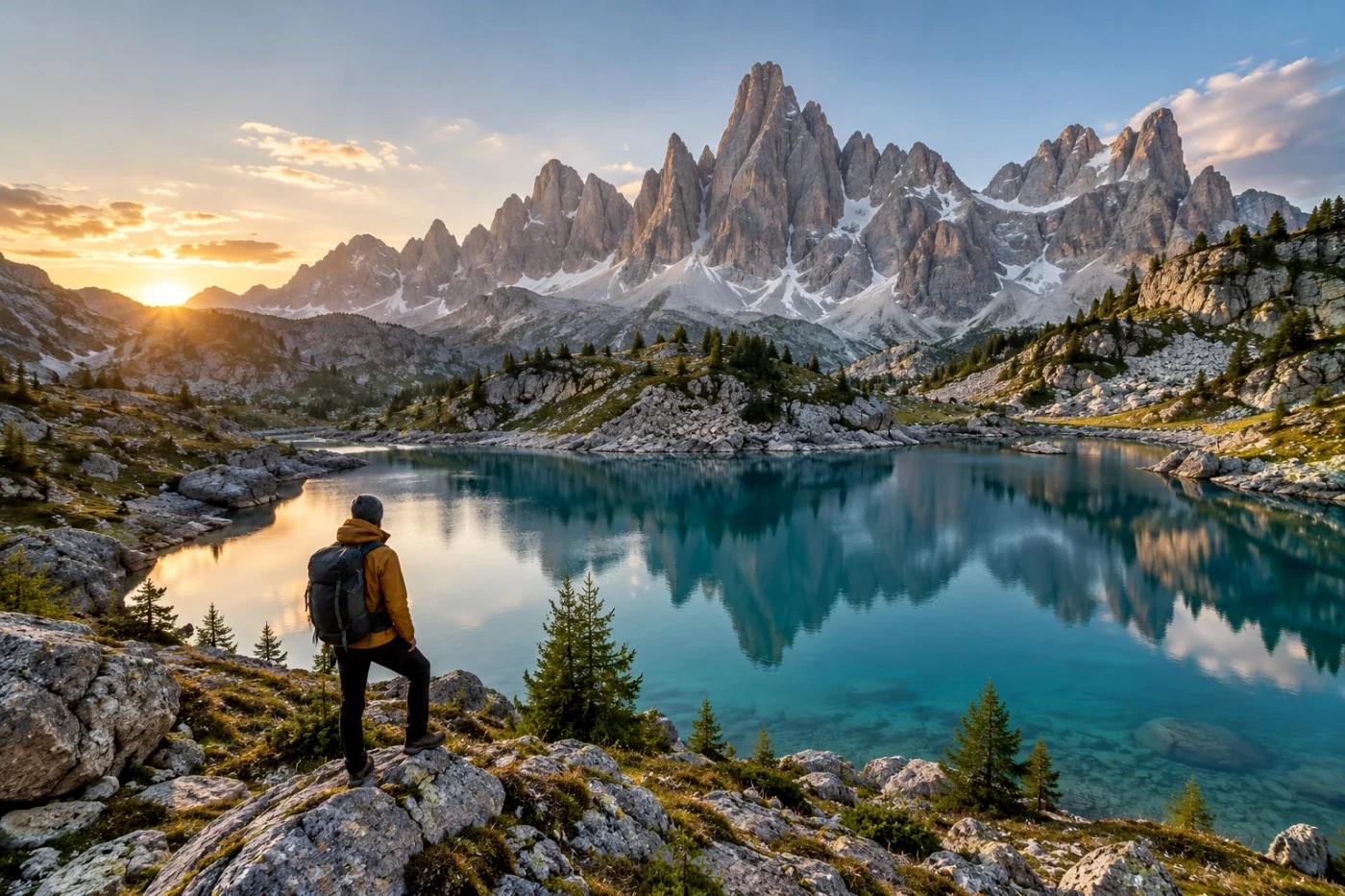
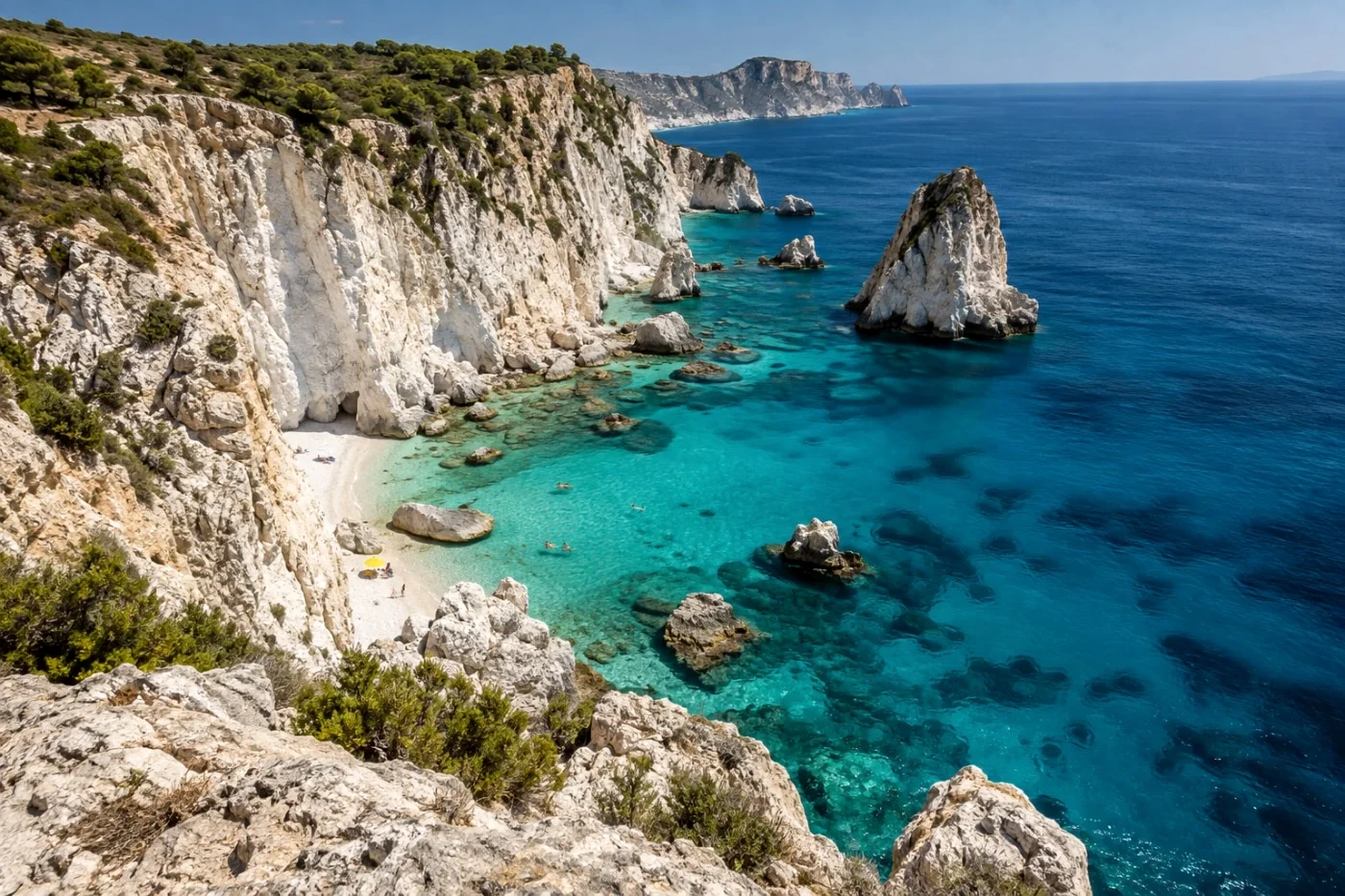
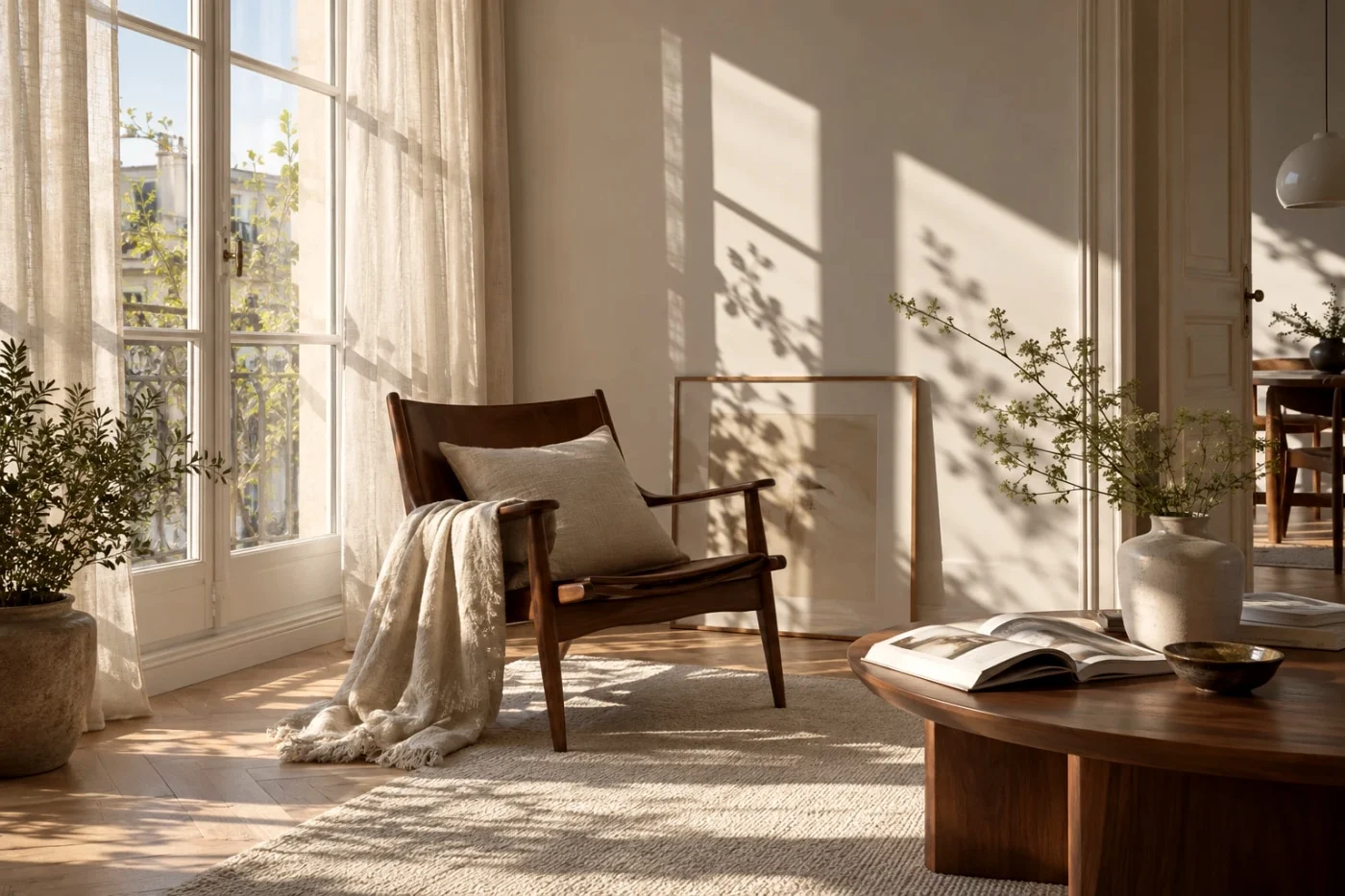
Classic Chrome-inspired processing on all three AI-created sources. The same settings, different starting light.
Compare with the three originals
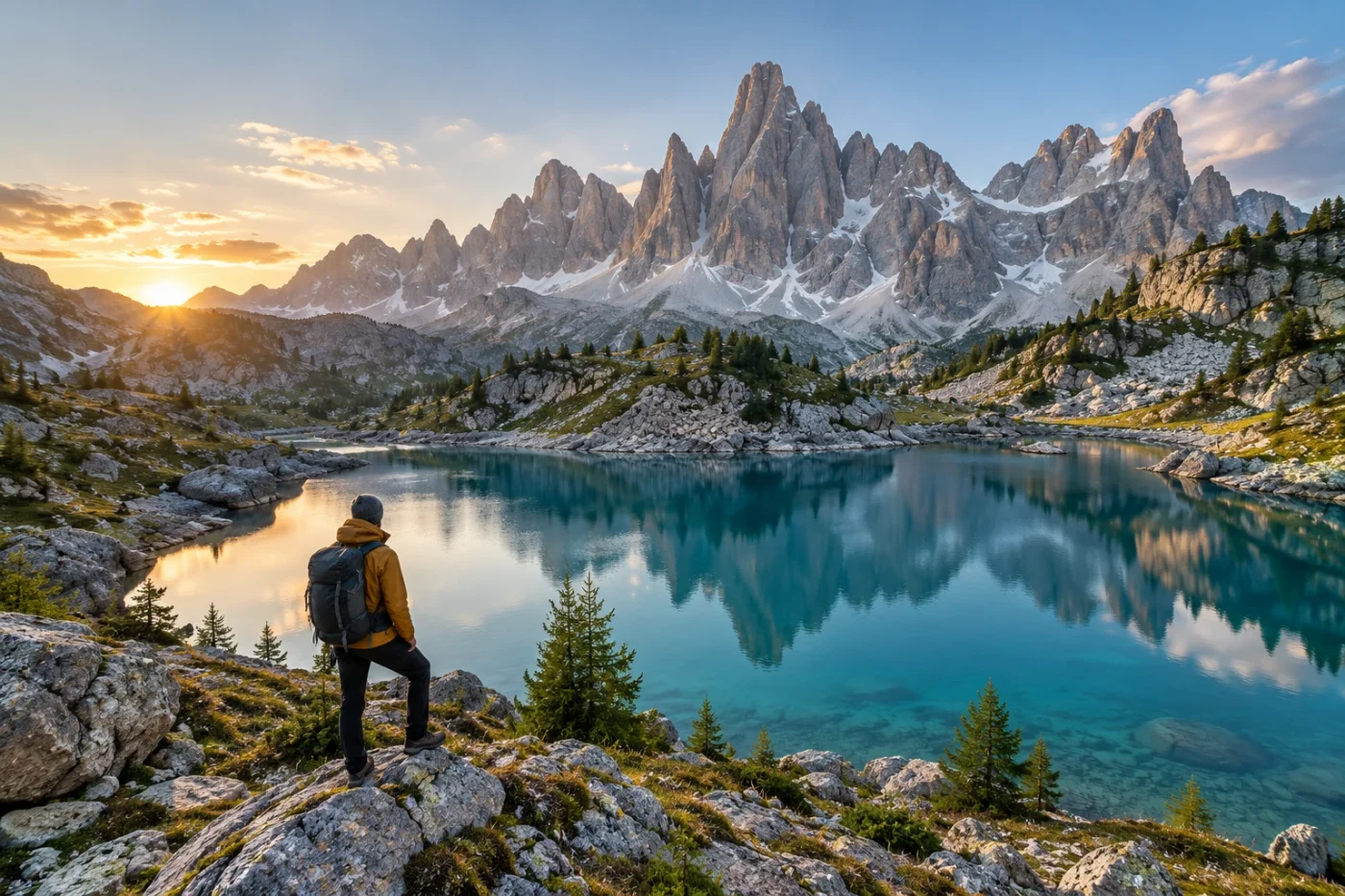
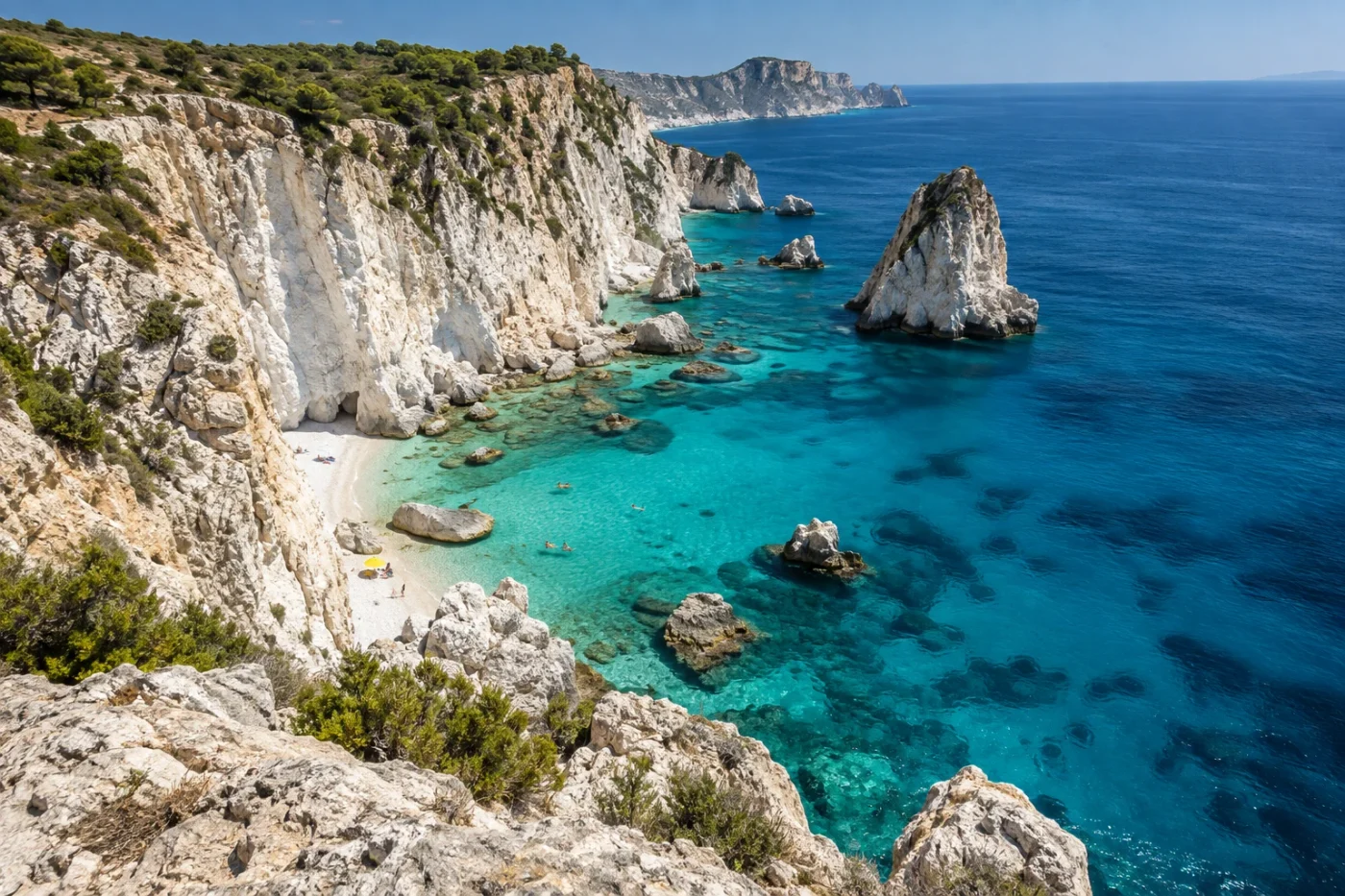
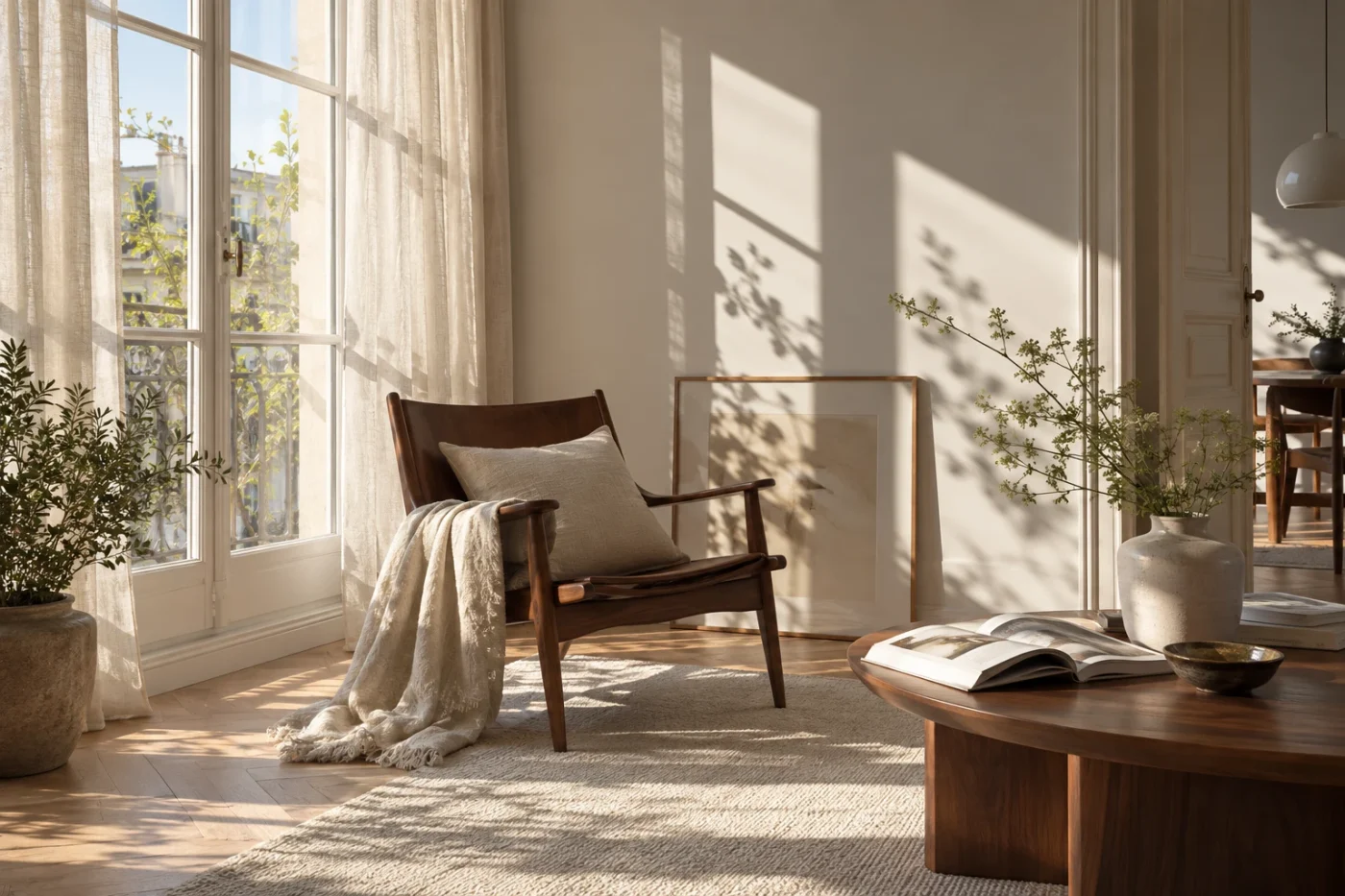
These are actual outputs on AI-created sources, not photos from a Fujifilm camera. Explore the Fujifilm-inspired collection for other starting points, or preview Classic Chrome on one photo before building a set.
Select your set and a representative photo
Open Batch photo filters and choose Upload photos. Select JPG, PNG or WebP files, each under 20 MB and 40 megapixels. Convert HEIC or RAW files before selecting them.
Your representative photo uploads first; the other selected files remain on your device until they are needed for processing. Click another photo’s thumbnail to make it the preview image. A useful representative contains your main subject and both bright and dark areas. Avoid deciding the look from an unusually bright or dark outlier.
The check mark on each tile controls whether that photo will be included in the export. Unchecking skips a photo. Removing an unuploaded file leaves the original on your device; deleting an uploaded photo also deletes its edits from the session.
Choose a look and check the exceptions
Select a filter below the preview, or open All looks to browse the library. Every available style can be previewed. A Studio badge describes saving access, not a restriction on trying it.
Use Original to compare the representative image before and after. Then preview at least one photo with different light or skin tones. If those exceptions need very different adjustments, split them into another set instead of pushing one setting across everything.
The Adjust controls apply one shared finish to the set. Intensity is available for color-only looks; brightness and warmth depend on the selected effect. Switching looks resets those controls. Sliders do not consume another preview, but saving a new adjustment combination is a new output.
Save the selection as a ZIP
Choose an output size before saving. Standard uses the daily save allowance. Studio HD uses the included HD processing balance. For a larger set, check that the available balance covers every new result; the editor checks this before processing starts.
With Studio access, choose Save N photos as ZIP. Without it, Unlock batch opens the plan explanation and keeps the set in place. You can close that explanation and continue exploring, or choose Select just this photo to use a single free Standard save with a free look.
Keep the tab open while the set runs. When the download is requested, check your browser’s Downloads list and open the ZIP to confirm that the files are there. Download again ZIP is available if the first download does not start.
If part of the set fails
Read the message on the affected photo. A quota problem, an unsupported file and a processing failure need different remedies. Reduce the selection if there is not enough allowance; convert unsupported files; retry the failed processing when appropriate.
Use Download completed to keep successful results. When you run the selection again, completed matching outputs can be reused, so you do not need to discard the good files. Failures and repeat downloads do not consume an additional successful save.
Avoid refreshing while local files are waiting: unuploaded files need to be selected again after an ordinary page refresh. Uploaded files can be restored in this browser until their 24-hour expiry. See session and processing limits for the full behavior.
A short check before a large set
- Do the selected photos have reasonably similar light?
- Have you checked both a typical photo and an exception?
- Is the selected look suitable for skin as well as scenery?
- Are the output size, allowance and selected count correct?
- Will you be able to keep the tab open and save before expiry?
For help choosing the starting palette, compare the examples in the film-look guide or the Ricoh street guide. Then come back to the batch tool with a clear choice.
See it on your own photo.
Start with one representative preview. Decide on the set after you see the result.
Start a photo set ↗